
BY DONNA MORITZ | CANVA VERIFIED EXPERT
This blog contains affiliate links, which means we receive a small commission at no cost to you, if you purchase through a link. The author, Donna Moritz is a Canva Verified Expert and as such can offer you a 30 day free trial of Canva Pro (affiliate).

What is Canva and why use Canva Pro?
Canva is a free, easy-to-use online graphic design platform designed to help anyone create professional visual content – it changed the game for non-designers creating visuals. I was one of the first users of Canva when it launched in 2013 and since that time have trained over 100,000 people to use Canva – so suffice to say I love it! Canva is free for all users, but if you're using Canva for anything more than a hobby or the odd personal project, then listen up! Using Canva for work or business is next level when you upgrade to Canva Pro.
Whether you're a solopreneur, content creator, business owner, employee, or part of a marketing team (and everything in between) Canva Pro is worth the upgrade. In this post I'll dive into the difference between Canva Free and Canva Pro, the main reasons you might want to upgrade to Canva Pro, and 5 ways to access Canva Pro for free (legitimately!) including a Canva Pro free trial.
Why Canva Pro? It can significantly boost your productivity and speed up your design workflow. Even if you have no design skills! You'll create high-impact on-brand content and reclaim hours of time each week by leveraging Canva's massive template library, vast premium content library, advanced AI tools and collaboration features.
And shhhhh … Canva Pro isn't just an upgrade for non-designers. It's a powerful, professional tool for designers too. Working with clients has never been easier when you're a designer using Canva Pro as part of your tool arsenal.
Get Started with a Canva Pro Free Trial
If you're one of the excited Canva users arriving at this post looking for a free trial, then you can get started right here with a Canva Pro Free Trial. As a Canva Verified Expert, I can offer you a 30 day free trial of Canva Pro:
I'll cover all of the features and recommendations in this post, including who Canva Pro is suited for, why you should upgrade to Canva Pro, the benefits of Canva Pro and how to get started creating amazing visuals! And be sure to read to the end as I'll share my tips for getting the most out of your Canva Pro free trial.
Key Takeways
- You can access Canva Pro for free on a 30 day trial to try all the features and benefits of Pro through Donna's Canva Verified Expert trial link.
- Canva Pro significantly boosts productivity for users needing advanced features and professional-quality visuals.
- Canva Pro is the most affordable way to get full access to Canva's entire content library, selection of templates, features (including AI tools), collaboration tools and brand kits. It's the perfect tool for solopreneurs and small business owners.
- Users should consider upgrading to Canva Pro if they create content frequently or need advanced design tools and collaboration features.
- Canva Pro is more affordable on an annual plan at $144 USD per year or you can pay monthly for $18 USD per year.
- In addition to a free trial you can also access Canva Pro-level features via Canva Nonprofit or Canva Education Accounts, team access, or using a Canva Coupon Code.
Ready to see why it's worth an upgrade with a Canva Pro Free Trial? Let's get into it wiith my key takeaways before breaking it down.
Why do a Canva Pro Free Trial?
Doing a 30 day Canva Pro Free Trial is the best way to take Canva Pro for a spin to see if it's worth investing in the upgrade. You get access to all of the features and benefits in the full Canva Pro account without any cost, and the time to test it out for your project, business or work. During my 30 day trial as a Canva Verified Expert, you'll get access to:
- more Canva templates and elements by gaining full access to Canva's extensive template and element libraries.
- more Brand Kits (you can create up to 5 Brand Kits) as well as ability to create Brand Templates and Brand Components
- all of Canva's Magic Studio Tools (such as Background Remvoer, Magic Resize and Magic Eraser)
- Higher limits on AI Creation tools like Magic Write, Photo/Video animations and AI voice)
- More Storage (100GB)
- a greater choice of export formats (Print PDF and CMYK in addition to basic print formats like PNG, JPG and PDF).
- Canva's Social Content Planner.
… and much more. Try Canva Pro on a free trial via your Canva account (you'll need to set that up first if you haven't already). Then read on to find out more about what's included and how to get the most out of your trial:

Comparison of Canva Free vs Canva Pro features you'll access in the Canva Pro Trial.
Why do I love Canva Pro?
As a Canva Verified Expert and Certified Canva Trainer at Socially Sorted, I train solopreneurs through to entire teams to use Canva's premium tools from Canva Pro to Canva Business and Canva Enterprise. So I have some experience {wink} in the power of these tools. I can say with all honesty that a simple upgrade from Canva Free to Canva Pro can make a massive difference to your ability to create on-brand, high-impact visuals. Conversely, there may also be some Canva users who might not be suited to an upgrade.
But don't just take my word for it. Let's jump into some feature comparisons between Canva Free and Canva Pro so you can make an informed decision about whether Canva Pro is right for you and to get the most out of your Canva Pro Free Trial should you choose to do one.
Benefits of Canva Pro
In order to look at the benefits of Canva Pro, we need to compare Canva Free to Canva Pro as there are definite differences between the two Canva subscriptions. This will help you determine if you want to do a Canva Pro free trial.
Comparison Table (Canva Free vs Canva Pro)
We've summarised the features for Canva Free vs Canva Pro into a simple no-fuss table:
| Feature | Canva Free | Canva Pro |
| Price | $0 free forever | Paid monthly or yearly after free trial – $18/mo or $144/yr USD |
| Number of Users Included | 1 user | 1 user |
| Templates | Large library of free templates across most formats | Everything in the Free plan PLUS a much bigger library of premium templates |
| Stock photos/videos/audio | Access to a limited set of free stock content and elements. | Full access to Canva's premium photos, videos, graphics, and audio library. |
| AI tools (Magic Studio & more) | Basic access with lower usage limits. | Extended access and higher/unlimited limits on AI tools like Magic Design, Magic Write etc. |
| Brand Kits & Brand Controls | Can upload up to 3 colors but logos and fonts can't be saved to brand kit. | Multiple Brand Kits (up to 5), custom fonts, brand templates and stronger brand controls. |
| Storage | 5 GB of Limited Cloud Storage (good for light use) | Larger Storage (100GB) allowing for heavier, ongoing design work. |
| Export formats | Standard formats only (ie PNG, JPG, Standard PDF) | Advanced print-ready exports including PDF print, transparent background and CMYK print option. |
| Background Remover (images/videos) | Not available or very restricted. | Full access to one-click background remover for images and video |
| Social media Planner | Not included | Built-in Canva Content Planner allowing social media scheduling to multiple platforms. |
| Collaboration Tools | Basic sharing and commenting. | Shared brand workspace, templates, approvals and better team collaboration. |
| Support response time | Standard support with slower response times. | Priority support with faster responses on paid plans. |
| Start using Canva | Try Canva Pro |
Get started with my free trial as a Canva Verified Expert.
Key Limitations of Canva Free
Before jumping into the key features of Canva Pro, here is an overview of who Canva Free is suited for and any limitations:
Canva Free is a generous, forever-free plan that gives you access to a range of templates, basic design tools and a basic selection of stock photos and graphics. Canva Free is perfect for hobbyists or those just getting started with creating visuals. It's not ideal for those using Canva for business or work.
- Limited Access to Premium Content – many photos, graphics and templates are marked as “Pro” and will show watermarks if you use them on a Free Plan or require upgrade to use.
- Restricted AI usage and Advanced Tools – some of the more powerful AI features (such as Background Remover and AI-editing tools) aree locked behind Canva Pro.
- Only one Brand Kit and limited fonts – You can set up a very basic brand kit in Canva Free, limited in colors and fonts. But you can't save your logo to a brand kit or upload custom fonts.
- Limited Storage and export options for professional use – In Canva Free you can print PNG, JPG and standard PDG but not print quality PDF or other file types like SVG or PNG with transparent background. You're also limited in storage capability with only 5GB of storage.
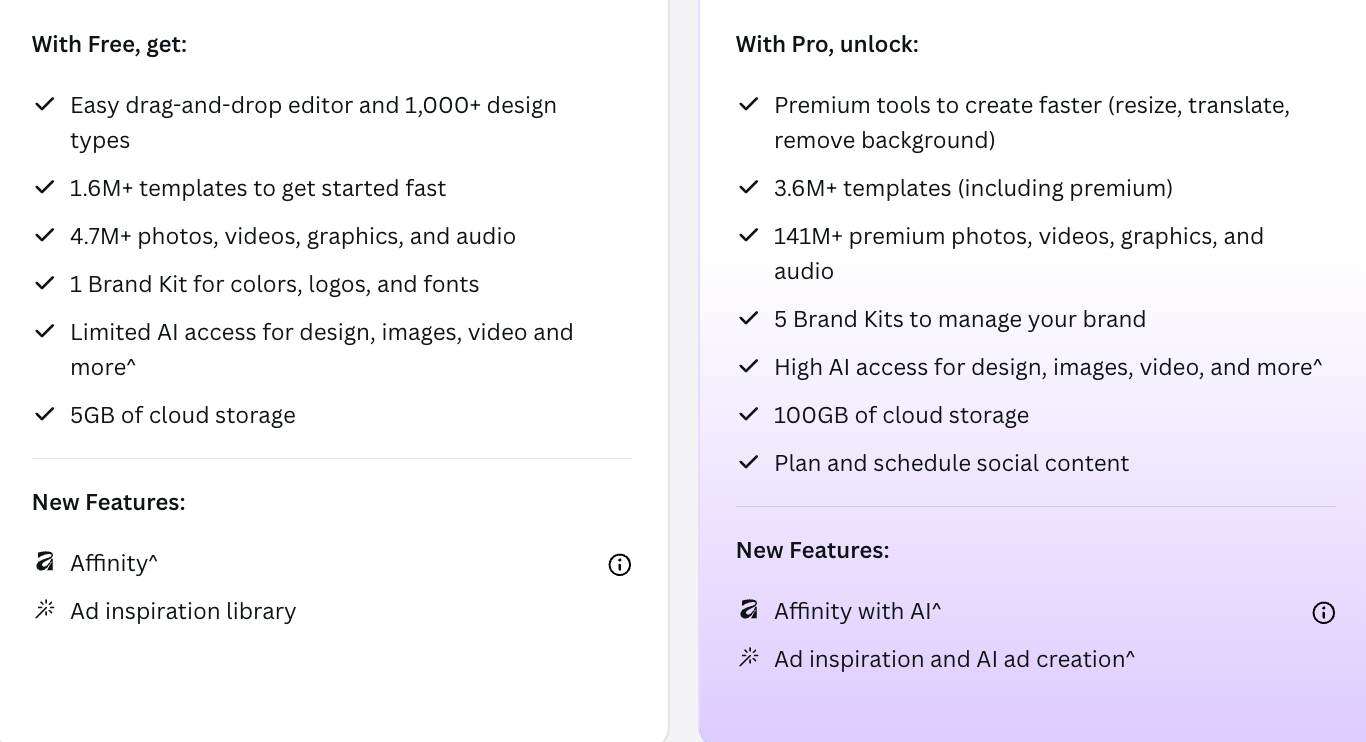
Key Benefits of Canva Pro
When you access your Canva Pro free trial, you'll see some of the following benefits. This is where you take Canva from “handy” to “professional use” for work or business. It takes everything in the free plan and adds a bucketload of features designed to save time and keep your content on-brand. These include:
1. Access to all Canva Premium Templates

- You'll get instant access to almost 4 million professionally-designed templates in Canva including more than 2 million premium templates.
- Fun Fact: As Socially Sorted's lead creative, I am also a Super Creator Template designer for Canva. Check out over 3000 of my templates here.
2. Full Acess to the Premium Media Library
- Unlock millions of extra photos, videos, graphics, illustrations, elements, and audio tracks – that can be used commercially.
- Ditch your other stock sites because everything is now in one place with Canva Pro, which is a huge time saver.
- You get access to almost almost 150 million premium photos, videos, graphics and audio.
- Access to premium Apps in Canva. This includes high-value apps in Canva's marketplace with advanced functionality.
3. Advanced AI Tools
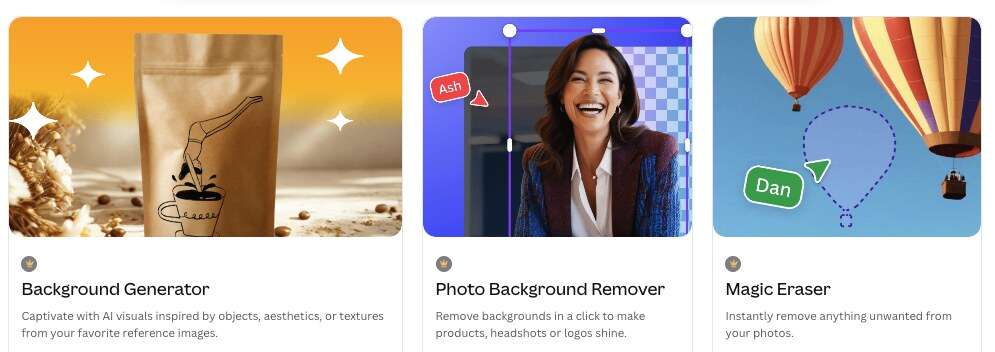
When you do a Canva Pro Free Trial, you'll get access to all of Canva's Premium AI features for editing, including:
- Background Remover – instantly remove the background from both images and videos… in one click!
- Magic Eraser – remove unwanted objects or people or items from photos.
- Magic Grab – separate any object or person from the background, enabling you to move the item in it's own later. Perfect for creating blank space for text or design elements.
- Magic Edit – add, replace or modify any part of an image using a simple text prompt.
- Grab Text – extract text from an image and turn it into an editable text element within your design.
- Background Generator – create instant professional backgrounds for your product images with a single prompt.
- Magic Expand – if you're image is not ideal for the size you need, extend the image using AI to fit your layout.
- Magic Switch – instantly repurpose designs into different formats (eg turn a Reel into a Pinterest Pin).
- Magic Translate – translate text into 100+ languages.
- Magic Resize – (including at Scale) – resize your designs into multiple document formats.
- Bulk Actions in Sheets – complete time-saving bulk actions in Canva Sheets.
Another bonus of Canva Pro is that you get access to AI tools in Affinity (Affinity itself is free, but the AI tools are a pro feature. This includes things like accessing your Canva Brand Kit in Affinity for seamless movement between both tools and being able to remove backgrounds in Affinity too.
4. Premium Canva AI Video Editing Tools

Video editing has never been easier. Level up to Canva Pro and it's like having your own video editing assistant with AI:
- Magic Video – Canva will convert video clips into a video. Add video clips from your mobile with a simple prompt. Then Canva's Magic AI will produce multiple on-trend video options for you.
- Video Background Remover – Remove video backgrounds in one-click (even curly-haired subjects!). Say goodbye to distractions and hello to impactful videos.
- Highlights – this new feature allows to create short mobile video clips using AI-powered highlights that Canva selects for you.
- Beat Sync – like having your own personal drummer, this feature allows to sync music tracks to your video footage… perfectly timed every time. No editing required.
- Captions – instantly add captions to your videos with this feature. They're editable and you can animate them too!
- Premium Video templates – are ready for you in Canva if you don't want to design from scratch. Canva's professional designers or “Creators” – including my template collection for Canva as a Canva Creator (Donna Moritz) – I have thousands of on-trend videos for you in the library.
- Popular Music Library – find perfect soundtracks for your videos with Canva's extensive music catalogue.
- Text-to-video – turn ideas or scripts into video with simple prompts.
- Enhance Voice – create high quality videos with crystal clear audio – removing annoying background noise!
Canva is adding new AI features all the time – all of which help you to cut down repetitive work and create more in less time. These features alone are worth checking out a Canva Pro free trial.
5. Canva Brand Features – Brand Kits & Brand Templates
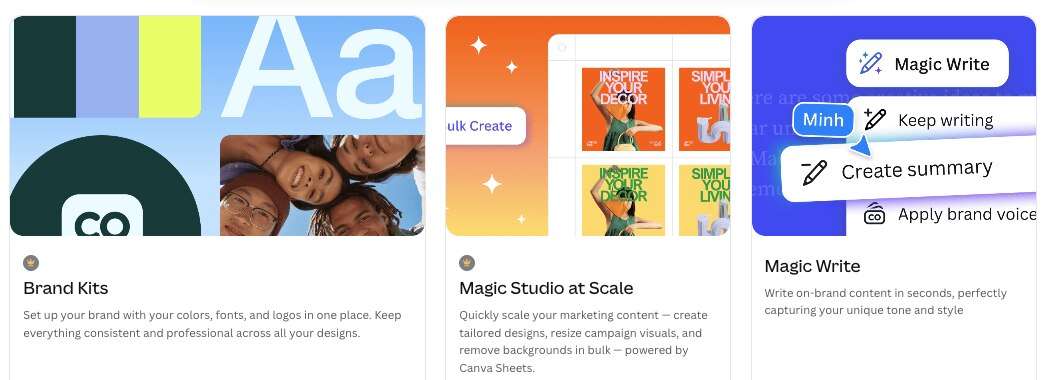
Canva Pro opens up a whole new level of brand capabilities – necessary if you use Canva for work or business. These include:
- Store multiple brand kits with logos, color palettes, and fonts. Perfect if you manage more than one brand in your business, or manage client accounts
- Ability to share template links – this allows you to share templates with your community or clients or even sell or share templates.
- Upload your own fonts – upload licensed fonts so your designs match your existing visual identity.
- Create brand templates – so your whole team can stay on brand without guessing.
- Magic Studio at Scale – create marketing content at scale. Create campaign visuals through to removing backgrounds in bulk, all powered by Canva Sheets but leveraging Pro-features (tie it all together with Magic Write, a Canva Free feature that is given a jetboost with Canva Pro).
- Magic Translate – take your brand global by translating into over 100 languages instantly with AI.
- Element Locking – with Canva Pro you can lock down elements of your templates so that you or your teaqm members can more easily edit templates.
- Replace Logos and Imagery – easily replace logos and images across multiple designs.
- Components – transform static assets into intelligent, reusable components.
6. More storage and export options
- Significantly more cloud storage for your designs, uploads and brand assets (100GB vs 5GB in Canva Free)
- Ability to download in higher-quality formats with more control, including print friendly PDF settings, CMYK (where Canva supports it), transparent PNGs for logos and overlays, and better options for large-format or professional printing.
7. Built in Content Planner for Social Media Scheduling
Did you even know Canva has as social media scheduling tool? The Content is a powerful feature available for Canva Pro users.
- Plan and schedule posts directly from Canva to your main social platforms.
- See your content in a calendar view, so you can see all of your upcoming posts laid out and plan and batch your content better.
- access to suggested templates for celebration and holidays, direct from Canva's template library.
Access to Canva's Content Planner is a huge benefit to many Canva users.
8. Faster, Priority Support
Canva Pro users get access to better, more comprehensive support. Those on paid plans get quicker access to support via chat or email if something breaks or you need urgent help. If you're using Canva for work or business, this is important!
Personally I've found this to be one of the best reasons to be on Canva Pro – the ability to reach out to support if there is an issue. It doesn't happen often but if you need it – it's good to have that option!
Try a Canva Pro Free Trial
Canva Pro isn't just about accumulating features. It's about saving serious time and keeping everything on-brand for less effort. If you're running a business, creating content weekly (or daily) or working with clients, the upgrade usually pays or itself in a couple of projects or a few hours saved each month.
Get Canva Pro free here, with a Canva Pro Free Trial:
Getting the most out of your Canva Pro Free Trial
If you're going to do a Canva Pro Free Trial, you'll want to get the most out of your 30 days. To do so, we recommend you do the following;
- Set up your Brand Kit – this can be for a project, a business, or a team. By setting up your Brand Kit you'll be able to experience the full set of brand tools that Canva Pro provides.
- Create a project in Canva to test the Canva features. This could be a presentation, a social media post or a small promotional campaign, or even a personal project. By working on a project using Canva Pro features, you're better able to see the benefits as you create something in Canva.
- Find elements for your project that are “Pro” elements to see the level of choice you have for templates and elements (including images, photos, videos, graphics, illustrations, audio and more!).
- Test out some Canva Magic AI features on your project – for example, remove the background from an image or resize a design for social media.
By testing out some of these items in this way you'll get to experience some of the best Canva Pro features first hand to see if you are willing in invest in paying for Canva Pro monthly or annually. Speaking of Canva Pro pricing…
Canva Pro Pricing – How much does Canva Pro cost?
Canva Pro Pricing is designed for solo users – creators, business, owners, employees, or freelancers who want all the bells and whistles without a team workspace. You'll see two billing options when you sign up for a Canva Pro Free Trial:
- Monthly Billing – approximately $18 per month USD (paid monthly).
- Annual Billing – approximately $144 per year USD (paid annually). This is a saving of $72 per year.
Canva Pro Pricing will vary slightly depending on your local region as Canva pricing charges according to your local currency. For example, I am an Australian so we are billed in Australian dollars for Canva (currently $20 AUD per month or $165 annually).
Overall, it's more affordable to upgrade to annual billing once you know you love Canva Pro (and I am quietly confident you will!). You'll need to add your credit card to access the Canva Pro free trial, but Canva will notify you when your subscription is due to charge after 30 days and you can cancel in settings at any time before your trial finishes.
How can I save money on Canva Pro?
There are a few ways you can save money on get access to discounts for Canva Pro. These include:
- Choose annual billing – once you know you love Canva Pro this is the most affordable pricing as you get a discount for annual vs monthly billing. $144 per year vs $18 per month is a considerable discount of $72 at the time of writing this post.
- Watch for promos and intro deals – yes Canva does occasionally offer promos or deals from time to time. It's rare but you might see an extended trial of Canva Pro or a deal with a free month or two. You may also spot seasonal or partner promotions (check in with us at Socially Sorted as I can often offer these too, on occasion as a Canva Verified Expert!).
- Apply for a Nonprofit or Education account – if that's an option for you, and you have the credentials to apply for this type of account, it's the best way to go.
- Drop other tools to save on Canva Pro – Chances are, you can consolidate your tech stack once you get Canva Pro and save more than you are spending. Switch your stock libraries to using stock in Canva Pro, Switch your social media scheduling tool to the Content Planner in Canva. Switch multiple AI tools like Chat GPT for Canva's AI text and image tools. Switch from antiquated Microsoft tools to Canva's presentation tools. You'll save thousands more than you'll spend on Canva Pro!
What about Canva for small to medium size teams?
If you're not flying solo, Canva Business is the plan built for multiple users (previously Canva Teams). It's ideal for businesses, marketing teams, agencies, schools and non-profits that need consistent branding and collaboration.
Find out more about Canva Business here.
Who Should Upgrade to Canva Pro in 2026?
Canva Pro is worth the upgrade for many of our community. But let's take a look at who should upgrade to Canva Pro in 2026 (and give your Canva a glow up) and who might be suited to a Canva Free plan.
Upgrade to Canva Pro if you:
- publish content daily or even weekly
- create designs for clients as a creator or virtual assistant or designer
- care strongly about brand consistency
- want integrated AI and social scheduling and collaboration tools in the one place.
- want access to all of Canva's premium assets – from templates to elements.
- you use Canva for work or business in a professional capacity.
Stay on Canva Free if you:
- are not designing many designs (your design volume is low)
- you don't need advanced exports or print quality
- you're comfortable with ocassional watermarks or limited assets or not being able to access “all” of the Canva templates and elements.
- you're mainly using Canva for personal use and don't need it for work.

5 ways to access Canva Pro features:
While the Canva Pro Trial is the most common way to access Canva Pro for free. But you can also access Canva premium features using other pathways giving 5 ways to access Canva Pro in total (including the Canva Pro free trial).
1. Start with the Canva Pro Trial
As we've covered, this is the first way that most Canva users will test out the features of Canva Pro. Try it here.
2. Canva Nonprofit
If you’re a Nonprofit, charity or NGO, there's good news for your Organization! Canva has an amazing program called Canva Nonprofits. It gives your Nonprofit access to Canva Pro-style features for free with up to 50 seats or team members.
3. Canva Education (for Educators & Students)
If you’re a teacher or work in education, then a fabulous way to get access to Canva Pro features is Canva for Education. Canva Education is an Education-specific version of Canva for K–12 teachers, schools and districts that gives free access to a Canva Pro-level set of tools – including ready-made classroom templates, lesson plans, posters, presentations, worksheets, and more. Teachers can set up class spaces where students join, collaborate on projects, and submit work.
4. Canva Pro via Work, School or Client Accounts
One way to access Canva Pro (that is not often talked about) is to be invited into a team where someone else is paying for (or has access to) Canva Pro features. For example, your employer or client (as a freelancer) might invite you into a Canva Business or Canva Teams subscription, giving you full access to Canva Pro-level features and now you can also add your personal brand kit as part of a team in Canva.
In these situations you are effectively getting Canva Pro for free, but it's important to remember that it's not your personal permanent account. The organisation owns the subscription, so they can remove access at any time if you leave the team, change roles or the project ends. But it can be a great way to test out Canva Pro features, if you're lucky to access it.
5. Using Canva Coupon Codes for Canva Pro
Valid Canva Promo Codes or Canva Coupon Codes are rare but they do exist! Canva does release these from time to time but they are usually listed on Canva's official website or as part of Canva events or shared by certified partners like Canva Verified Experts or Canva's team. Please only use codes from Canva's official website or events to avoid scams.
What you can't do! Free Lifetime Canva Pro (Myth Alert!)
Let's clear up a big myth. You might see ads or posts or videos about getting “Canva Pro for lifetime for free”. These are illegal, involve piracy, stolen accounts or illegitimately gained accounts. Canva Lifetime accounts don't exist.
Repeat: you can't get a Canva Lifetime Account – they don't exist.
Most of these “secret” or “free” Canva Pro hacks are based on illegal Education accounts that are not verified and you will be added into a large team that can be shut down at any time by Canva (and often they are) losing all of your content. The safest route is to stick to one of the 4 options above.
FAQs about Canva Pro (including Canva Pro Free Trial)
Got questions about Canva Pro and the Canva Pro Free Trial? We've got Answers:
The Canva Pro Free Trial gives you access to the FULL selection of Canva Pro features. You get access to all the Canva Pro Features, templates, elements, brand features and AI Tools for the entirety of 30 days. Use these features to explore Canva Pro and test to see if it's a good fit for your business. Set up a brand kit, try the background remover, use the Pro features and elements, resize designs, and explore the Pro templates as much as you can in the 30 days.
Canva will remind you about the trial nearing the end of the 30 day free trial of Canva Pro. Canva will let you know about your first subscription payment (whether it would be monthly or annually) depending on the trial format you chose). If you wish to continue with Canva Pro after the Canva Pro free trial, your subscription will charge on your credit card. If you don't wish to continue to use Canva Pro, then cancel your subscription in your Canva Settings (in Billing > Subscriptions). If you have any issues, please contact Canva Support.
Canva Pro is approximately $18 USD per month or $144 USD per year which is a significant discount for annual payment (we recommend you do annual payments if you can to save money). Note that pricing varies depending on region and currency, so check your local pricing page for Canva.
You do need to add your card to your Canva account to access the Canva Pro free trial. However, Canva will notify you with a reminder that your free trial is coming to an end before they charge your card. If you're not 100% sure you want to continue with Canva Pro after your free trial (and convert to a paid subscription) then you can cancel before the trial finishes. Do this in your Canva settings.
Great question! For teams of 3 or more people, Canva Business may be a better fit for you. You can find out more about Canva Business (and if it's worth it) on this post: and get a free trial of Canva Business for 30 days!
Great question! Quite a few things actually! Although there's no doubting that Canva Free is a great way to get started with Canva. Here are the key differences:
Canva Free gives you access to thousands of elements, templates, basic design tools and a basic selection of stock photos and graphics. It has limited access to Canva AI and Magic Design tools and includes only one (limited) set of Brand Colors only without full Brand Kit. You get some storage but it is reduced to 5GB. Canva Free is a perfect solution for hobbyists, or those using Canva for personal use or just getting started with creating visual content.
Canva Pro is a better fit for those using Canva for business or work – as it includes millions of premium templates, elements (photos, graphics, illustrations, video and audio) and more. You can create up to 5 Brand Kits, get access to all of the AI features and tools, 100GB of storage and the ability to plan and schedule content with a content planner. And so much more….
Wrapping it Up
Ready to go Canva Pro with a Canva Pro Free Trial? Once you move to Canva Pro, you'll likely never go back…especially when you realise how many thousands (in hours and dollars) you'll save through productivity, proficiency and professionalism. You'll be creating high-impact on-brand visuals at scale!
Yes, I'm a little biased after using Canva since it launched and Canva Pro for most of that time since! But honestly I couldn't live without Canva Pro for my business.
Get started with premium features today, with a Canva Pro Free Trial:

Donna Moritz


