

Canva Animation Tools bring designs to life, but where do you start? In this post, you have a top template Creator for Canva in your back pocket to share quick and easy ways to animate your designs.
BY DONNA MORITZ | JANUARY 31, 2026
Canva Animation Tools
Canva Animation tools give you so many ways to add movement to your designs. In this post, I share a number of these features to break down how you can animate your designs quickly and easily – even if you don't have any design skills.
Why do I know about Canva Animation Tools?
Hey, I'm Donna Moritz, the lead creative at Socially Sorted – an agency that helps teams create on-brand, high-impact visuals at scale. But do you know a secret?
My favorite thing to do when I'm not training teams of 2 to 222 is to create templates for Canva.
Yes, that's right – I'm one of a select few “Super Creators” who design templates for Canva's library including exclusive business templates and special design briefs. We work closely with Canva's designers, Design Educators and Creator team to help add on-trend, impactful designs to Canva's library like these whiteboard templates. And a lot of those templates are animated. In fact, of the 28,000,000 downloads of my templates by Canva users, mobile videos are by far the most popular.
In this post, I'm sharing a few of my favorite animation features that I use every day when creating templates in Canva (not just for Canva's library but also for my clients, and in training designers in teams to design their own stunning animated templates).
Note: a few of these animation features require Canva Pro. You can get a free trial of Canva Pro using my link as a Canva Verified Expert here:
Before we dive into the 3 top Canva animation tools, just a reminder about the key ways to animate or add movement to a design. These are:
- Add video footage to your design in Canva.
- Add animated elements or stickers to your design in Canva.
- Use page and element animation features in CAnva.
This post dives into the page and element animation features:
Top 3 Canva Animation Tools
Prefer to watch a video tutorial? Here's a video sharing my top 3 Canva Animation Tools so you can dive straight in. I've also time-stamped the relevant sections you can jump to as we break down the 3 Canva animation features below:
Here are the 3 key Canva animation tools in detail:
1. Create an Animation

Create an Animation is a custom animation tool in Canva. It allows you to add a custom animation path to your design. See the time-stamped example in this video to see how it works:
As shown in the video above, to use this Canva animation tool, you will need to:
- Highlight any element that you want to animate in the Canva editor.
- You will be shown a full menu of animation features on the LHS side panel.
- Choose “Create an Animation”. This will allow you to create your own custom animation path.
- Select and drag the element you wish to animate in the direction and format you wish it to be moved across the screen (in the demonstration above, I am moving the paper plane across the screen as an example).
- Note: the resulting animation path may be a bit “jerky” depending on how adept you are with a mouse. To fix this, you can choose a Movement Style to smooth things out (ie “Smooth” or “Steady”).
- You can also adjust the speed of your animation.
- Happy with your animation path? Click “Done” to save it.
- HOT TIP: If you want a straight line animation, hold the shift key as you animate an object. This will keep your animation direction in a perfectly straight line.

Watch the video above for examples of templates I've created using Create an Animation, as well as demonstrations for using the feature.
2. Transition Animations

The second way to animate like a Pro in Canva is to use Transition Animations. It's one of my favorite Canva Animation Tools.
Transition Animations help to bring your design or pages to life. Think of these types of animations as the glue that holds together the story between pages or sections.
Transition Animations can give the illusion of elements moving across the page, like the examples in the video below. It could be moving between images, elements or lines to create the illusion of movement. It also keeps us engaged between content pieces.
Check it out in this time-stamped video snippet:
One of my favorite types of transition animation is Match and Move, which creates movements between two identical elements on two separate pages. It could be two lines or two animated elements that you add this transition to. I've demonstrated this feature in the video above.
To add a Transition Animation:
- Hover between any two pages of a design.
- Choose the transition button “ADD TRANSITION” and then choose the transition animation you want to add. For example, if you choose MATCH AND MOVE, it will add a transition animation between any two identical elements across two pages of your design.
- Other transition animations include DISSOLVE, SLIDE, CIRCLE WIPE, COLOR WIPE, LINE WIPE, FLOW, STACK AND CROP. Individually, some of these transitions are very simple, but added into a design with other movement… they can really transform your content. Before long, these features will become your favorite Canva animation tools too!
- HOT TIP: You can also adjust the settings to make your transition longer or shorter in duration.
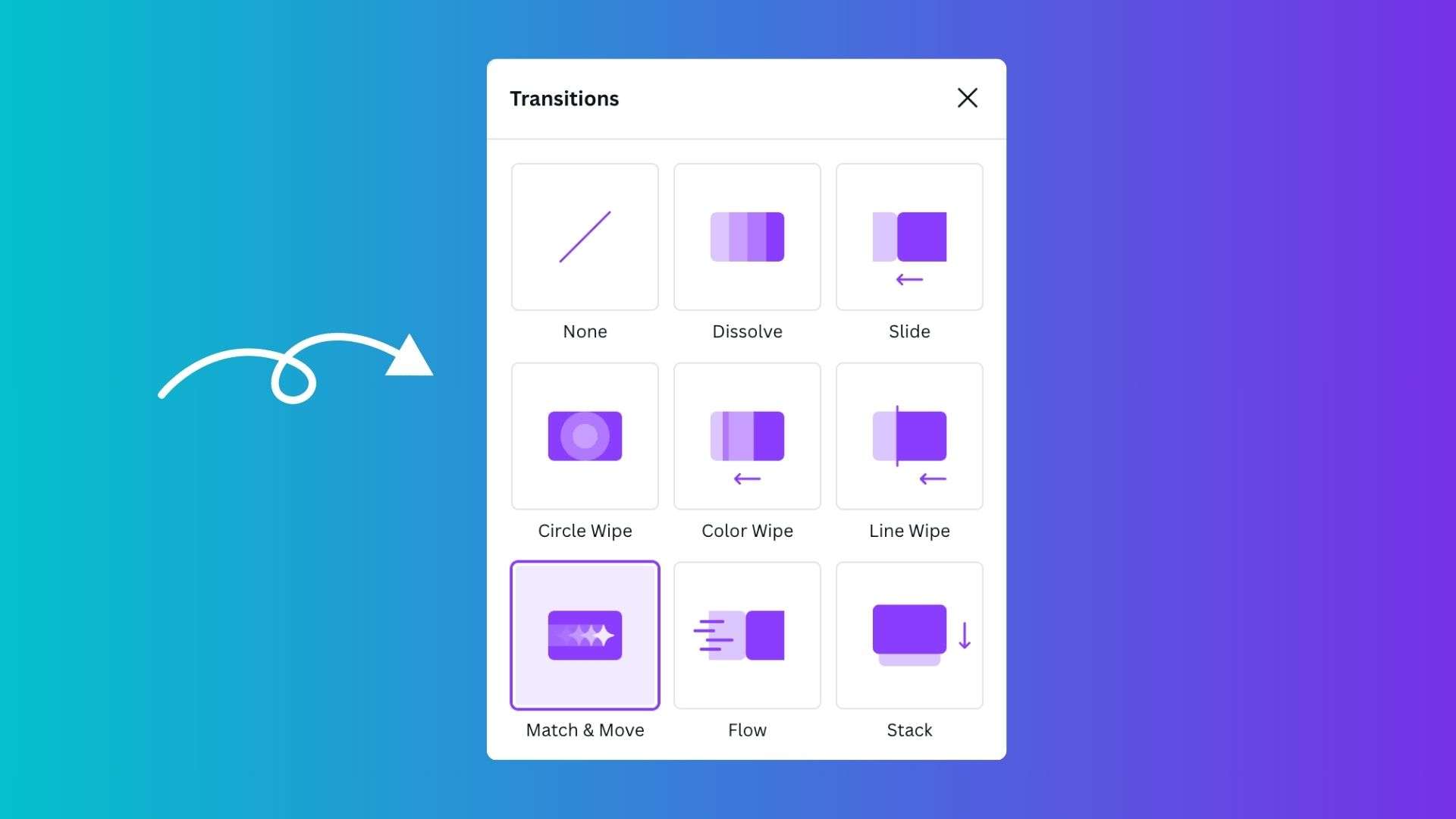
Watch the video snippet above for examples of how to add Transition Animations in Canva.
3. Animated Elements (Page & Element Animations)

Lastly (but by no means the least important of all the Canva Animation Tools) are Animated Elements. Or more specifically, Page and Element animations. There is a huge selection of page and element animations in Canva. You can animate entire pages in one click by choosing a specific style – or animate just a single line of text. The choice is yours!
Check it out in this time-stamped video snippet:
To use Page and Text animations:
- Choose Animate from the top Toolbar in the Canva Editor.
- You will see a menu pop up in the side panel, showing you a selection of Page and Element Animations.
- Canva will show you the menu you need, based on what you have highlighted. For example, if you highlighted a text box before clicking “Animate” Canva will open up the text animations for you to start animating your text.
- Page Animations let you animate an entire page. Element animations let you animate a single element. Text animations let you animate a text box or section of text.
- Pass your mouse over any animation item to see it preview on your design before selecting it (watch the video above for a demonstration of this).
- Once you choose an animation like POP or NEON to apply to your text or graphic element (or page) you can then adjust the animation. This includes the ability to control whether the animation appears on entry or exit or both. It also allows you to control the speed of the animation (note that this is a Canva Pro feature).
- Canva is adding new animated elements all the time, so visit this feature regularly to see new ways to animate your designs.

Watch the video snippet above for examples of how to add Transition Animations in Canva.
Need Canva Pro to control your animations more accurately with timing and speed? Grab a free trial here:
Want Animated Video Templates?
As I mentioned, I'm a Super Creator of templates for Canva's library and I work with Canva's team in this role to complete exclusive design briefs for templates. These range from business templates to mobile video templates and everything in between.
So, let's talk about mobile video templates. I loooooooove mobile video, from Instagram Reels to TikTok videos to Facebook Reels, and animated Instagram Stories. All of these mobile videos can stop the scroll and engage your audience.
I want to share some of them with you. Grab my collection of 95+ mobile video templates here:
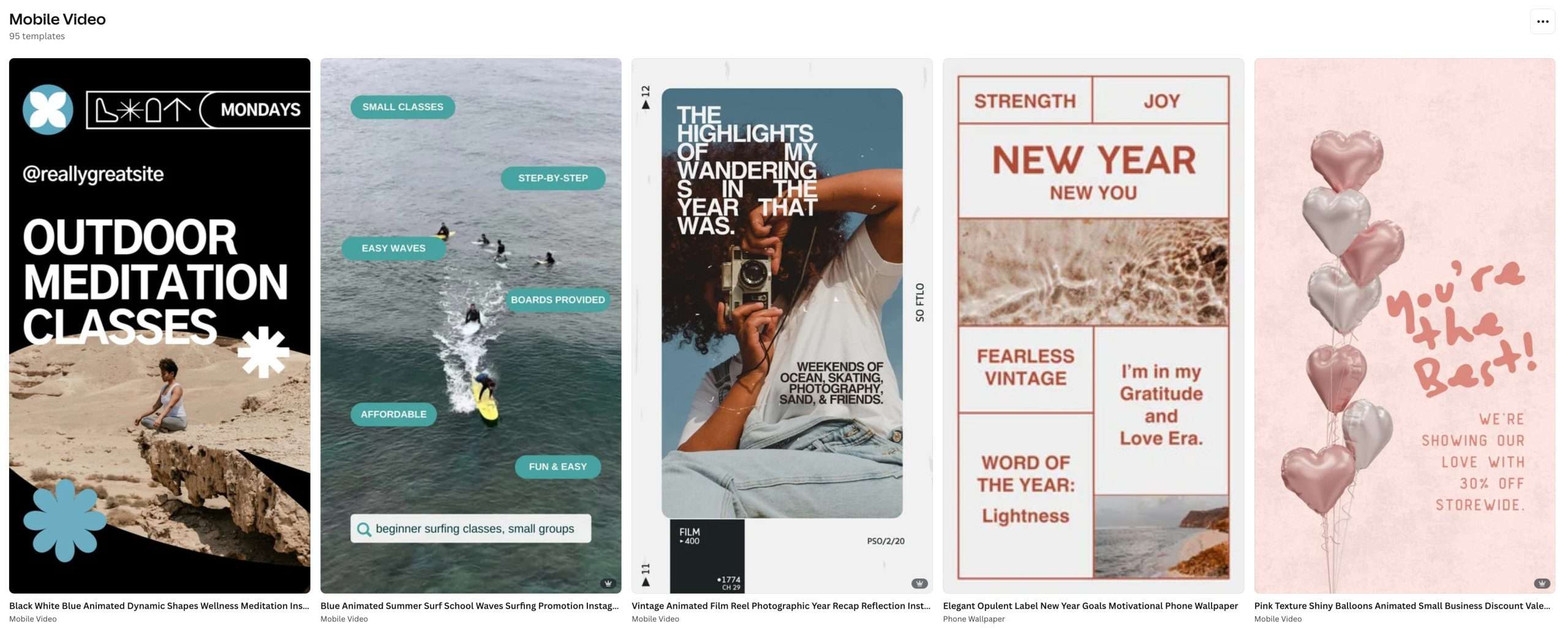
There are dozens of free and pro mobile video templates in this collection. And yes, many of them are animated.
Note that if you need Canva Pro to access and use all of the video templates, grab my free trial here:

Wrapping it up
Canva animation tools keep getting better and better. No longer is professional video the domain of professional video creators only… non-designers can use the animation features in Canva to create amazing visuals. Use a template or add your own animated video, elements or transitions and get creative!


Donna Moritz


